
To humanize a Word document, revise a manageable section of its text, compare the rewrite with the original, and return only approved prose to your DOCX file. Keep Word as the master document for styles, citations, footnotes, tables, and revision history. PaperHumanizer can extract text from a supported Word file, but it does not directly edit your Word document or return a formatting-preserved DOCX.
This guide is for students and researchers with an existing draft, not for generating a paper from scratch. If your paragraph is ready to revise, open the academic AI Humanizer. If you want to see the difference between a useful rewrite and a risky one first, browse our annotated academic humanizer examples.
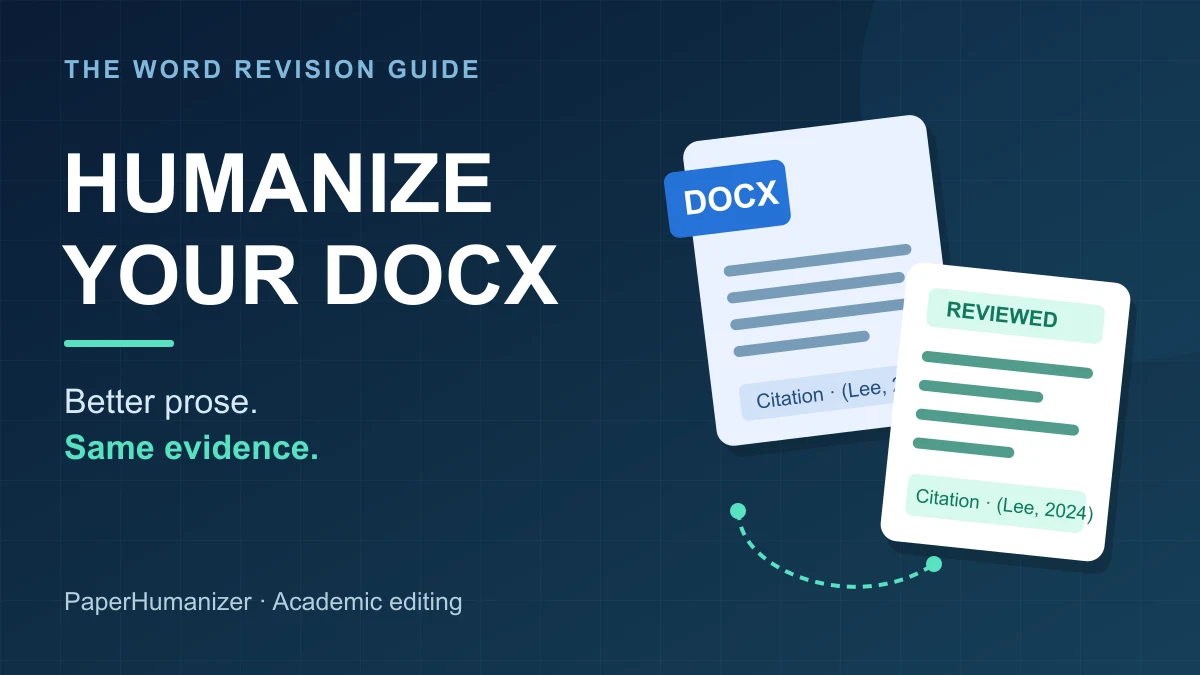
Improve the prose in an editing workspace; keep the formatted source in Word.
Can you upload a Word document to an AI humanizer?
Yes. PaperHumanizer accepts .docx, .doc, .pdf, and .txt files up to 10 MB and extracts their readable text into the editor. The current editing limit is 10,000 characters per input, not 10,000 words. If an upload contains more text, the editor truncates it to that limit and displays a warning. Do not assume that the entire paper is present after uploading a long document.
For a thesis or a heavily formatted manuscript, copying a selected section from Word is often easier to control than uploading the full file. Check the beginning and end of the extracted passage, paragraph order, citation markers, and special characters before starting a rewrite.
| Task | What happens |
|---|---|
| Upload a DOCX or DOC file | Readable text is extracted into the editor |
| Revise academic prose | Select a purpose and tone, then review the completed rewrite |
| Preserve page layout automatically | Not part of the plain-text workflow |
| Keep live citation-manager fields | Manage those fields in the original Word file |
| Export a revised DOCX | Copy approved text back into Word; the tool's download is plain text |
This is not a Word add-in or a Microsoft integration. It is a document-to-text revision workflow that you control.
Before you start: keep a master copy and a protected-content list
Save an unchanged copy of your document before editing. Work in a second copy with a clear name such as chapter-2-revision.docx. Do not overwrite the only version that contains your supervisor's comments or your original citation fields.
Check whether your course, research team, publisher, or employer permits AI-assisted editing and external uploads. Remove confidential or restricted information when required. A section copied from Word can contain identifying details just as easily as a complete file.
Next, list the elements that a smoother sentence must not change:
- The central claim and its level of certainty
- Citation authors, years, page numbers, and numbered references
- Direct quotations, including their original wording
- Sample sizes, values, units, and statistical notation
- Defined technical terms and abbreviations
- Footnote anchors, cross-references, equations, and table content
These elements are not obstacles to good writing. They are the evidence and document structure that the writing depends on. Our citation-preservation guide explains how to check them in more detail.
How to humanize a DOCX file in six steps
1. Choose a section with one clear job
Start with one paragraph or a short connected section: an introduction explaining the problem, a literature-review theme, or a discussion of one result. Keep enough context to understand the claim, but leave unrelated sections out.
Avoid selecting the bibliography, equations, tables, and required declarations. For a paragraph interrupted by a footnote or a live citation field, consider copying only the editable prose and retaining the field in Word for the final assembly.
For a longer draft, keep a simple revision log: section name, date, what changed, and what still needs checking. This is more useful than repeatedly processing the whole manuscript and trying to remember which version you approved.
2. Upload the file or paste the selected text
Open PaperHumanizer, sign in, and either upload a supported file or paste your selected passage. If you upload a document, inspect the extracted text before generation. Fix missing symbols, merged paragraphs, or displaced note text first.
When a long file is truncated, return to Word and copy a smaller section deliberately. Moving through a paper by named sections is safer than treating the first 10,000 characters of an upload as a complete revision task.
3. Match the purpose and tone to the passage
Use Essay / Assignment for coursework and Academic Paper for research writing. Choose Standard Academic for clear formal prose, Scholarly for nuanced interpretation, or Technical / STEM when procedural precision and technical vocabulary matter most.
The tone should match the paragraph's job, not just the file's title. A methods section needs different editing decisions from a reflective essay. See academic writing tones explained for examples.
Standard and Deep controls are available to everyone in the current editor; they do not require separate subscription access. Focus on whether the completed result is appropriate for your draft rather than assuming a mode label guarantees a particular outcome.
4. Review the rewrite beside the original
Use the comparison view and keep the source passage open in Word. Check meaning before style. A sentence can become shorter while quietly losing an important qualification such as “in this sample” or “after controlling for age.”
Read citation-bearing sentences as two linked parts: what is being claimed, and which source supports it. Merely retaining (Lee, 2024) is not enough if the rewrite moves that citation to a different claim.
Then check numbers, units, terminology, and quotations. Finally, read the paragraph aloud. Accept natural wording that fits your discipline; reject invented details even if they make the passage sound more polished.
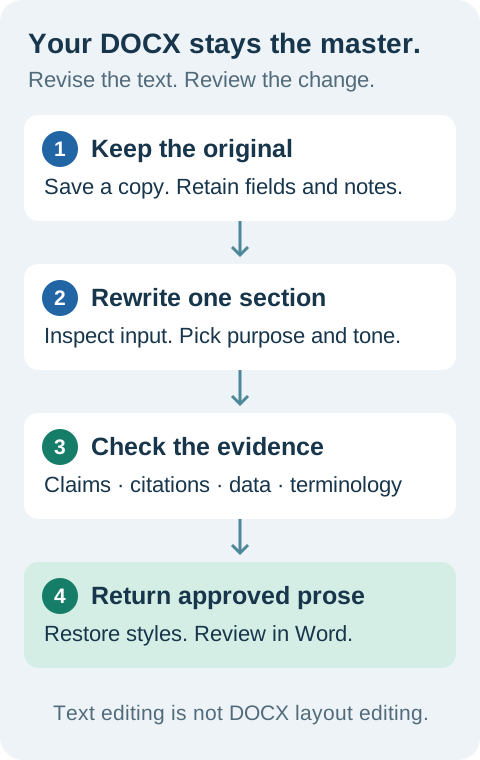
The master DOCX stays outside the text-rewriting step, so you can retain its document structure while approving changes section by section.
5. Return approved prose to Word carefully
Replace only the text you have checked, not an entire formatted section containing fields or objects. If a citation is generated by a reference manager, retain or reinsert it using that manager in Word. A citation-looking string pasted from a text editor is not the same as a live citation field.
Choose the paste option appropriate to the destination and reapply needed formatting. Microsoft's paste-formatting documentation explains the options. Keep Text Only avoids importing unwanted styling, but does not restore italics, superscripts, or other non-text elements for you.
Check headings, spacing, emphasis, and note positions after replacement. Keep tables and equations in their original structures rather than rebuilding them from extracted text.
6. Review the document-level changes
If your Word version supports it, turn on Track Changes before replacing text in the working copy. A replacement can appear as a large deletion and insertion, so inspect the resulting passage rather than treating a redline as proof of semantic accuracy.
You can also compare saved original and revised documents. Microsoft's document-comparison guide describes the legal-blackline option in supported desktop versions. Menus and availability differ across Word versions.
Keep your original and revised files. Review unresolved comments and refresh the bibliography or cross-references through the tools that manage them. Then read the surrounding paragraphs to make sure the new wording still connects with the rest of the chapter.
Word humanization example: smoother wording, same claim
The passage below is a constructed teaching example, not a published research finding or a measured product result. Its citation and sample details are fictional.
Draft
Furthermore, the survey results indicate that students who reported using a weekly planning routine also reported lower deadline stress in this sample (Lee, 2024). It is important to note that the survey does not establish whether the routine caused the difference.
Illustrative revision
In this sample, students who reported using a weekly planning routine also reported lower deadline stress (Lee, 2024). The survey does not establish whether the routine caused the difference.
The revision removes stock framing without upgrading the finding. It retains the sample boundary, the self-reported nature of both measures, the citation, and the explicit limitation on causality.
Reject this version: “Weekly planning reduces students' deadline stress.” It drops the survey context and turns an association into a causal statement. No formatting check or detector score would fix that error.
Want to try the same review process on your own draft? Humanize one non-sensitive paragraph, then compare it with your original before replacing anything in Word.
Common Word-document problems and what to do
My citation still looks right, but the reference manager does not recognize it
The rewrite may contain the visible citation text without the original field behind it. Restore the citation through your reference manager. Check both the in-text marker and the reference-list entry; visual similarity does not prove that the link between them is intact.
Footnotes or endnotes are missing or mixed into the prose
Use the original Word document to locate the note and its anchor. Preserve the note structure there, then revise the surrounding prose separately. Do not paste extracted note text back into the paragraph as though it were part of the argument.
My italics, headings, or superscripts changed
Plain text carries words, not the complete Word formatting system. Reapply the appropriate styles and inspect field-specific conventions such as italic species names, statistical symbols, and numbered headings. Keep the original file open as your reference.
The rewrite is fluent but no longer sounds like me
Restore phrases that express your own stance or disciplinary voice. Humanization should not add personal experiences, replace specific reasoning with generic claims, or make every sentence equally polished. A short manual edit can be better than a second full rewrite.
The document still receives an AI flag
Changing the file format or rewriting prose does not guarantee an external detector result. Detector output is separate from whether the passage is accurate and well written. PaperHumanizer's on-screen detector-style scores are simulated presentation values, not live scans from those services.
If you are dealing with a report, use the AI detection percentage guide to understand what the score does and does not establish. Keep drafting history and follow the review process required by your institution.
Final DOCX revision checklist
- I kept an unchanged master file and worked in a copy.
- My selected section fits the editor's character limit.
- I checked extracted text before rewriting it.
- Citations support the same claims and their live fields are restored where needed.
- Numbers, terminology, quotations, and qualifications remain accurate.
- Footnotes, tables, equations, and styles are intact in Word.
- I reviewed the approved prose in the context of the full document.
- My use of AI-assisted editing follows the applicable policy.
Frequently asked questions
Can I humanize a Word document without changing its formatting?
You can keep the original formatting under your control by editing selected prose and returning it to the source file carefully. PaperHumanizer itself does not preserve the complete DOCX layout or field structure through the text-rewriting step. Check formatting in Word afterward.
Should I upload DOCX or convert it to PDF first?
If you have the editable Word source, there is usually no need to convert it merely to revise the prose. Select and paste a section, or upload the supported Word file and inspect its extracted text. Use our PDF humanization guide when PDF is the source you actually have.
Can I download the humanized result as a Word file?
The current download is plain text. Copy approved output into your Word working copy, restore formatting and citation fields, and save it as DOCX there.
Should I rewrite an entire thesis at once?
No. Process coherent sections and review them before moving on. The input limit is 10,000 characters, and whole-document replacement makes citation and formatting errors harder to isolate. Our thesis humanizer guide covers the larger chapter-by-chapter process.
Try the workflow before committing your whole document
Start with a paragraph that contains a citation and one detail you can verify. Open PaperHumanizer, choose the appropriate academic tone, and assess the completed rewrite against that evidence. If the workflow fits your recurring coursework or research needs, review the available plans before processing more sections.
The useful result is not merely different wording. It is prose you can confidently return to your document because you checked what changed and what stayed the same.