
Academic drafts often reach the revision stage as PDFs. You may have exported a paper from Word, downloaded a supervisor's annotated copy, or received a typeset manuscript from a collaborator. If the prose still sounds repetitive or machine-generated, retyping it into an editor is slow and creates new opportunities for citation errors.
An AI PDF humanizer solves the first part of that problem by extracting the text from the file so you can revise it. The difficult part comes next: deciding which text is safe to humanize, which content should stay untouched, and how to return the revision to the formatted document without changing the evidence.
This guide explains the complete workflow for humanizing PDF text while preserving citations, numbers, quotations, and academic meaning.
What an AI PDF humanizer actually does
A PDF humanizer does not rewrite the visual PDF page itself. PaperHumanizer accepts PDF, DOCX, DOC, and TXT files up to 10 MB, extracts their readable text, and places that text in the editor. You can then choose a humanization depth and academic tone before reviewing the result.
If you have the editable Word source instead, use the Word and DOCX humanization workflow for section selection, citation fields, formatting restoration, and document-level review.
That distinction matters because PDF files contain more than prose. A page can include:
- Running headers, page numbers, and footnotes
- Tables, figure captions, equations, and references
- Multi-column layouts and line-break hyphenation
- Embedded fonts or characters with unusual encoding
- Scanned page images with no selectable text layer
Text extraction handles ordinary, text-based PDFs best. It does not promise to preserve the page layout, font styling, table structure, or exact placement of footnotes. Your formatted source document remains the authoritative copy.
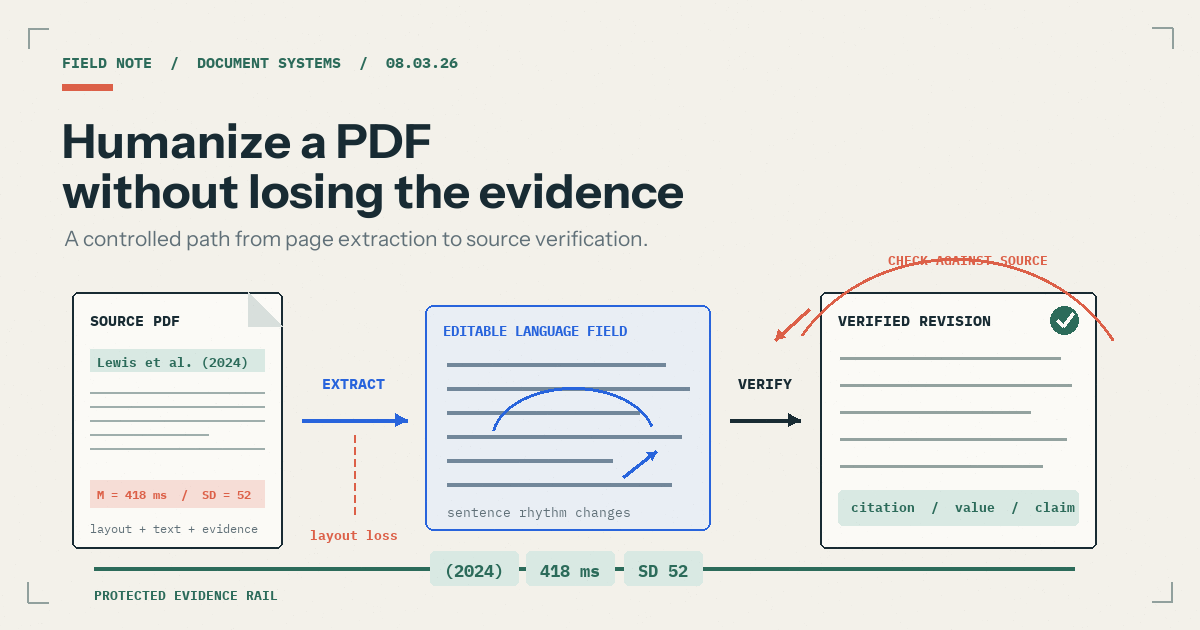
Treat PDF upload as the start of a controlled editing workflow, not as an automatic replacement for your formatted document.
Check the PDF before you upload it
Open the PDF and try to select a sentence with your cursor. If you can select and copy normal text, the document probably has a usable text layer. If the entire page behaves like one image, it is a scanned PDF and needs optical character recognition (OCR) first.
Before uploading, also check whether the document contains sensitive, confidential, or restricted material. Follow the rules set by your university, employer, ethics board, publisher, or client. Remove personal identifiers and unpublished data when the applicable policy requires it.
Keep an unchanged copy of the PDF and, when possible, the editable source file. A .docx, Google Docs file, LaTeX project, or other source format is usually better for restoring revised prose than editing a PDF directly.
How to humanize PDF text step by step
1. Upload the document and inspect the extracted text
Open the AI Humanizer, select Upload File, and choose your PDF. After extraction, compare the text in the editor with the original pages.
Look specifically for:
- Missing Greek letters, mathematical symbols, or special characters
- Words joined together across columns
- Hyphenated words split at line endings
- Footnotes inserted into the middle of a paragraph
- Page numbers or headers mixed into the prose
- Tables converted into an unreadable sequence of cells
Correct extraction problems before humanizing anything. A language model cannot reliably infer whether a misplaced number came from a sentence, table, footnote, or page header.
2. Remove content that should not be rewritten
Do not send the entire extracted document through one pass. First remove or set aside structured and verbatim material:
- The bibliography or reference list
- Direct quotations and block quotes
- Tables, equations, source code, and figure labels
- Title-page details, headers, and page numbers
- Consent language, protocol identifiers, or required disclosures
Keep in-text citations with the sentences they support. PaperHumanizer is designed to preserve common citation patterns, but you should still verify every author name, year, page number, and citation position afterward.
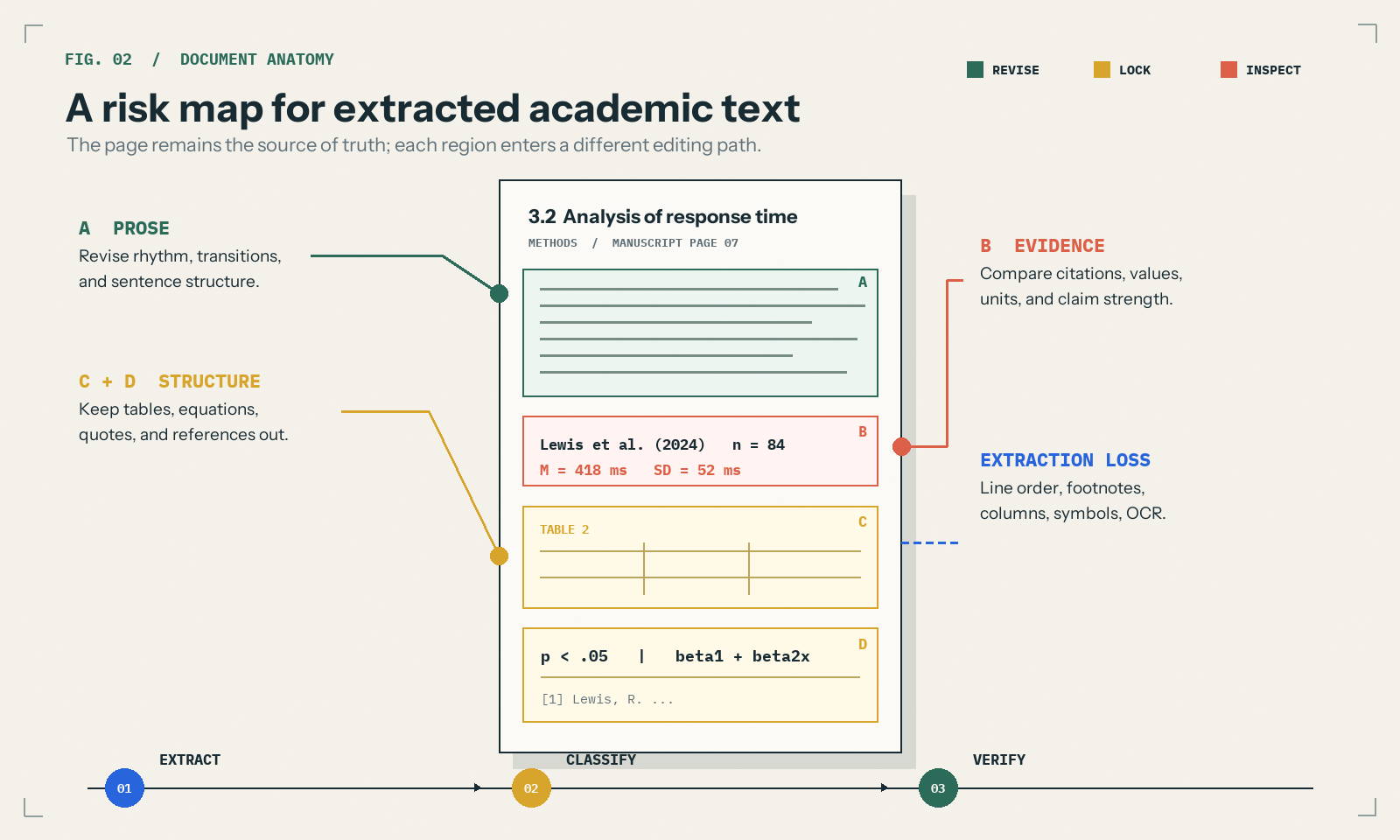
Separate editable prose from locked content, then inspect every high-risk detail against the source PDF.
3. Divide the prose into logical sections
Process one coherent section at a time rather than using arbitrary chunks. Good boundaries include an abstract, one literature-review theme, a methods subsection, or two connected discussion paragraphs.
Focused passages give the editor enough context to vary sentence rhythm without mixing unrelated claims. They also make the comparison manageable. If you humanize twenty pages at once, a changed citation or number can be difficult to locate.
For a complete research paper, a sensible order is:
- Abstract
- Introduction
- Literature review
- Methods
- Results commentary
- Discussion
- Conclusion
Leave the reference list, raw tables, and equations outside the process. The research paper humanizer guide explains the different risk level of each section.
4. Choose the tone for the section, not the whole file
Use Standard Academic for clear coursework and general academic prose. Use Scholarly for theory-heavy analysis, literature reviews, and nuanced discussion. Use Technical / STEM for methodology, engineering, laboratory, medical, and quantitative passages where terminology must remain precise.
The same PDF may require more than one tone. A technical methods section and an interpretive discussion should not be forced into the same register. See Academic Writing Tones Explained for a detailed comparison.
Choose Standard humanization for a light revision when the prose is already close to your intended voice. Use Deep mode only when the passage needs broader sentence-level restructuring and that mode is available to your plan. One deliberate pass is safer than repeatedly processing the same paragraph.
5. Compare the output with the PDF
Use the Compare view and keep the source PDF open beside it. Read one sentence at a time and verify five categories:
| Category | What must remain unchanged |
|---|---|
| Claims | Direction, scope, certainty, and limitations |
| Citations | Author, year, page, grouping, and sentence placement |
| Data | Values, signs, decimal places, units, and sample sizes |
| Terminology | Defined constructs, method names, and field-specific terms |
| Structure | Relationship between evidence, interpretation, and conclusion |
Do not accept a revision merely because it sounds smoother. If a sentence changes what a study found, makes a cautious association sound causal, or moves a citation away from its claim, restore the source wording and revise it manually.
The citation-preservation checklist provides more detailed checks for APA, MLA, Chicago, Vancouver, and author-date references.
6. Return only approved prose to the source document
Copy the verified text back into the editable source file, not into a flattened PDF when you can avoid it. Reapply paragraph styles, headings, italics, superscripts, and footnotes there. Then regenerate the PDF and compare it with the original.
This final step is where formatting is restored. The extraction and humanization workflow works on text; Word, Google Docs, LaTeX, or your publishing system controls the document layout.
Before and after: revising extracted PDF prose safely
Extracted draft
Furthermore, the results of the study conducted by Lewis et al. (2024) demonstrate that the intervention was associated with a significant reduction in response time (M = 418 ms, SD = 52 ms). Moreover, this finding is important because it indicates that structured feedback can improve performance.
Controlled revision
Lewis et al. (2024) found that the intervention was associated with a shorter response time (M = 418 ms, SD = 52 ms). The result suggests that structured feedback may improve performance under the conditions tested.
The revision removes mechanical transitions and varies the sentence structure. It retains the citation, values, units, direction of the finding, and cautious wording. It does not upgrade an association into proof of causation.
PDF elements that need extra attention
Footnotes and endnotes
PDF extraction may place a footnote beside the wrong paragraph. Match each note marker with the source page before returning the text to your document.
Tables and multi-column layouts
Tables can lose row and column relationships when converted to plain text. Keep them outside the humanizer and revise only the prose that introduces or interprets them.
Equations and scientific symbols
An extraction error can change a minus sign, subscript, superscript, or Greek character. Preserve equations as locked content and verify every inline symbol.
Scanned documents
Run OCR first, preferably in a tool that lets you review uncertain characters. Names, dates, 0/O, 1/l, decimal points, and citation years are common OCR failure points.
Password-protected PDFs
Use the authorized, unlocked source file. Do not attempt to bypass access restrictions, and do not upload a document unless you have permission to process it.
Common mistakes when humanizing a PDF
Uploading the final PDF without keeping the source. You need the editable file to restore styles, references, and layout efficiently.
Humanizing the bibliography. Reference entries are structured records, not prose. Rewriting them can corrupt titles, publishers, and identifiers.
Trusting extraction without inspection. A fluent revision can conceal a character or column-order error introduced before humanization began.
Processing the whole paper in one pass. Smaller sections are easier to verify and less likely to suffer semantic drift.
Using detector scores as the only test. A lower score does not prove that citations, evidence, or academic meaning remain accurate. Human review is required.
A final PDF humanization checklist
- The uploaded file is authorized and contains selectable text
- I kept the original PDF and editable source file
- Extraction errors were corrected before revision
- References, quotations, tables, equations, and required wording were excluded
- I processed one logical section at a time
- The tone matches the section and discipline
- Every citation, number, unit, and technical term was compared with the PDF
- Approved prose was restored in the editable source document
- The regenerated PDF was checked before submission
Frequently asked questions
Can I upload a PDF directly to PaperHumanizer?
Yes. The upload workflow accepts PDF, DOCX, DOC, and TXT files up to 10 MB and extracts readable text into the editor.
Does an AI PDF humanizer preserve formatting?
It preserves and revises text, not the visual page layout. Keep your editable source file and restore approved prose there so headings, fonts, tables, footnotes, and pagination remain under your control.
Can PaperHumanizer read a scanned PDF?
A scanned PDF may not contain an extractable text layer. Run OCR first, review the OCR output for errors, and then upload or paste the corrected text.
How do I humanize a PDF without losing citations?
Keep citations attached to their supporting sentences, exclude the reference list, revise focused passages, and compare every author, year, page number, and citation position with the original PDF.
Should I humanize an entire research paper PDF at once?
No. Work section by section. Smaller passages preserve context while making it practical to verify claims, data, and references after each revision.
When the document is prepared, open the AI PDF humanizer workflow, upload the file, and begin with one section you can fully verify.